
When The Built-In Flow Needs Help
When screenshot Add to Calendar is not enough.
The built-in iPhone flow can be useful when it recognizes the right event and gives you enough control. Sometimes the screenshot is too crowded, the date is not obvious, the action is not available, or you want a clearer review step before saving. Screenshot Calendar gives you a dedicated alternative without claiming that iOS is broken or that one workflow fits every screenshot.
Primary intent: screenshot add to calendar not working
Review before save
Native iPhone Calendar output
First Checks
First, check the simple things.
Before switching workflows, make sure the screenshot is clear, the date and time are visible, and the event details are not hidden behind a menu or cropped edge. If the built-in action is available in Photos or the source app, retry from there. If you still want more control, a review-first app gives you a calmer path.
Use the clearest version of the screenshot
Make sure future date and time details are visible
Retry from Photos or the original app when the built-in action appears
Switch to a dedicated review flow when you need to inspect the draft
Alternative Workflow
Use a review-first workflow instead.
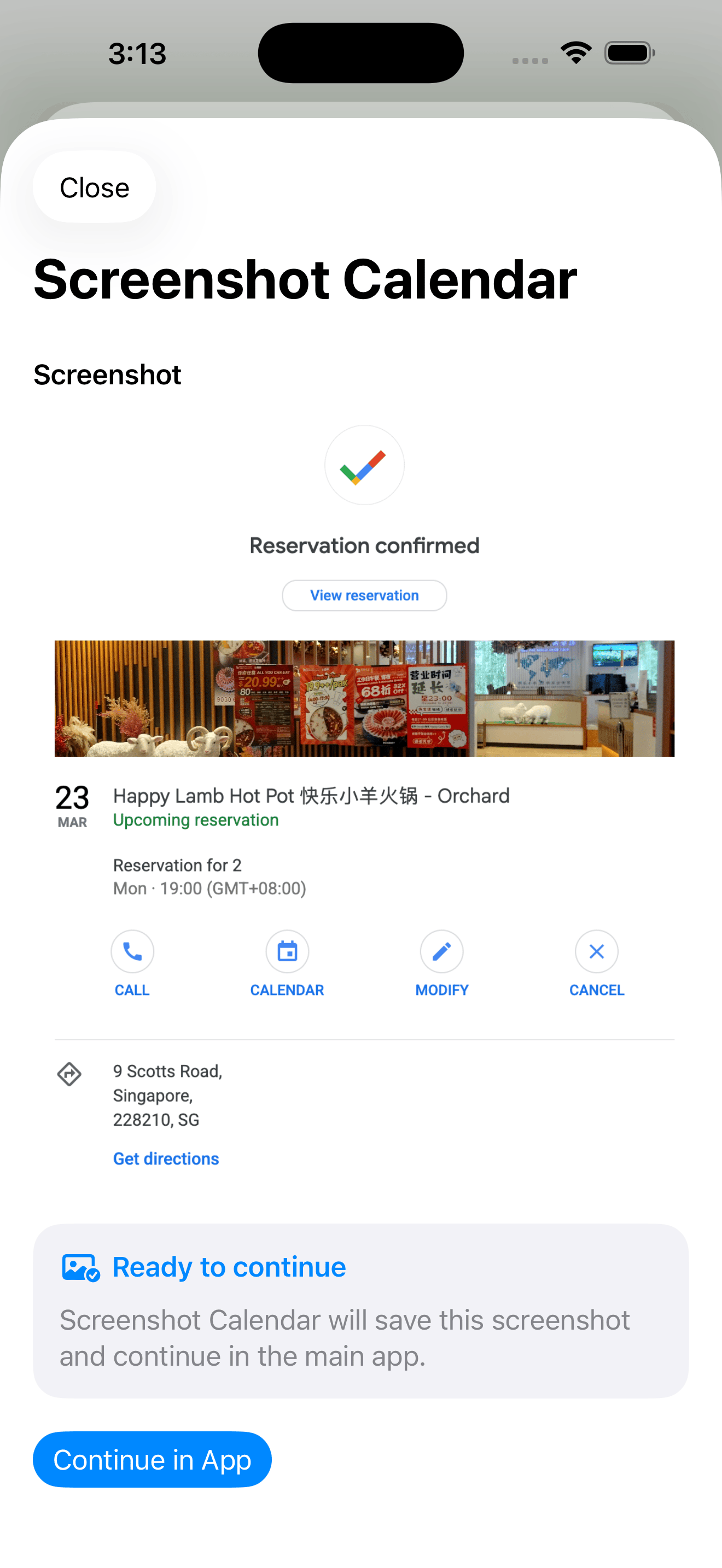
Share the screenshot to Screenshot Calendar, confirm the handoff, and open the extracted event draft in the app. The review screen is the key difference: it gives you a place to check the event before it reaches Calendar, rather than accepting the first detected action as final.
Share from Photos
Open a visible event draft
Edit details before save
Save into native Calendar
Before Save
What Screenshot Calendar gives you before save.
The app gives you a draft you can read, adjust, and save deliberately. That matters for screenshots with extra text, partial locations, multiple possible dates, or event notes you want to keep. History and ICS fallback actions also give you a way to return to the extraction or use a portable calendar file if native save is not the right next step.
Editable title, time, location, and notes
History for processed screenshots
ICS fallback actions
No claim that every screenshot can be fixed
Respectful Positioning
Use the tool that fits the screenshot.
Apple offers screenshot and visual event actions on supported iPhones, and those features can be useful. Screenshot Calendar is positioned around control: share sheet input, editable review, native Calendar output, history, and fallback files.
No unsupported iOS bug claims
No Apple affiliation implied
Check Apple docs for current availability details
Questions people ask.
- Why did my screenshot not become a calendar event?
- The event details might be unclear, cropped, visually crowded, or not detected by the built-in flow. The safest next step is to use a clear screenshot and review the extracted draft before saving.
- Can Screenshot Calendar fix every screenshot?
- No. It can prepare a draft from many event screenshots, but you should review the details and skip the save when the image does not contain enough usable information.
- Can I edit the extracted event?
- Yes. Editing before save is the main reason to use the app for this problem.
- Is this different from the built-in iPhone action?
- Yes. The built-in action can be quick when it appears and gets the details right. Screenshot Calendar adds a dedicated review screen, history, and ICS fallback actions.
Review the event before you save it.
Screenshot Calendar keeps the draft visible so the final event lands in Calendar only after you have checked it.