
Flyer To Calendar
Turn an event flyer into a Calendar event.
Flyers are designed to catch attention, not to make calendar entry easy. The date may sit in one corner, the venue in another, and the notes might be mixed with sponsor text or ticket instructions. Screenshot Calendar helps turn that visual layout into an editable event draft, then lets you review the details before the event reaches Calendar.
Primary intent: flyer to calendar
Review before save
Native iPhone Calendar output

Best Fit
For posters, flyers, invites, and event pages.
Use this flow when the event exists as a designed image or a visual web page instead of clean calendar text. Screenshot Calendar is helpful for venue posters, school flyers, club announcements, workshop graphics, invitations, and screenshots of event pages that bury details inside a layout.
Printed flyers photographed with iPhone
Posters or invites sent in Messages
Venue and event pages captured as screenshots
Graphics where date, time, venue, and notes need review
Flyer Flow
Review the title, date, time, and location.
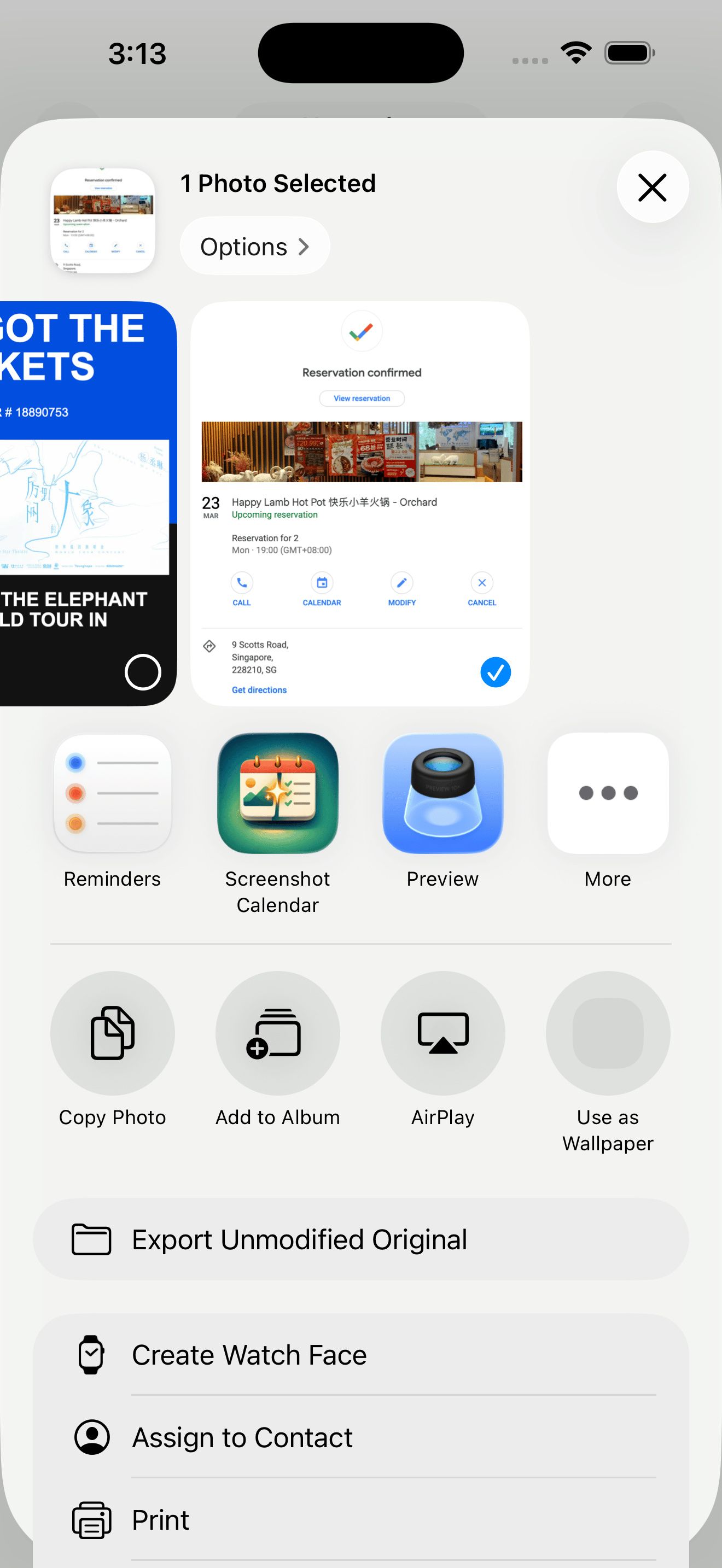
Save or screenshot the flyer, share it to Screenshot Calendar, and continue into the app. The review screen gives you a place to check the event title, date, start time, end time, venue, and notes. If the flyer lists several dates or sessions, review the extracted events before saving.
Capture the flyer
Share through the iPhone share sheet
Review every important field
Save the clean event to Calendar
Clean Event
Save the clean event to Calendar.
A flyer may include information you do not want in Calendar, such as marketing copy, sponsor names, or ticket instructions. Screenshot Calendar lets you keep the useful details and leave the clutter behind. When the draft is ready, save it into the native iPhone Calendar app.
Confirm the venue
Keep useful notes
Skip promotional clutter
Use ICS sharing when a file is useful
Fallback
Keep a file path available when you need one.
Native Calendar is the normal destination, but event files can still be useful. Screenshot Calendar keeps ICS actions available for sharing, opening, or recovering the calendar file from history.
Native Calendar save
Open or share ICS
Redownload ICS from history when available
Questions people ask.
- What if the flyer has multiple dates?
- Review the extracted drafts carefully. If the app detects more than one event, save only the events you actually want in Calendar.
- What if the location is incomplete?
- Edit the location before saving. Flyers often use short venue names, so the review step is where you can add the missing detail.
- Can I add notes?
- Yes. Use notes for ticket links, door times, host details, or any context you want to keep with the event.
- Can I share the calendar file?
- Yes. ICS actions are available as a fallback when you need to open or share a portable calendar file.
Review the event before you save it.
Screenshot Calendar keeps the draft visible so the final event lands in Calendar only after you have checked it.