
Screenshot To Calendar For iPhone
Turn iPhone screenshots into Calendar events.
The plan is already on your phone. It might be a concert poster in Messages, a booking confirmation in email, a school notice on the web, or a screenshot you saved because you did not have time to type the details into Calendar. Screenshot Calendar gives that screenshot a focused path: share from Photos, continue into the app, review the extracted event, and save only after the draft looks right.
Primary intent: screenshot to calendar iPhone
Review before save
Native iPhone Calendar output
Best Fit
Best for screenshots of plans, invites, bookings, and event details.
This page is for the common iPhone moment where the event is visible but not yet usable. Screenshot Calendar is a good fit when the screenshot contains a title, date, time, location, notes, or enough context to prepare an event draft. It is especially useful when the screenshot came from another app and you want to avoid rebuilding the plan field by field.
Invitations from Messages, Mail, Safari, or social apps
Booking confirmations with time, venue, or check-in details
Event announcements where the important details are mixed with other text
Screenshots you want to inspect before anything reaches Calendar
iPhone Flow
How the iPhone flow works.
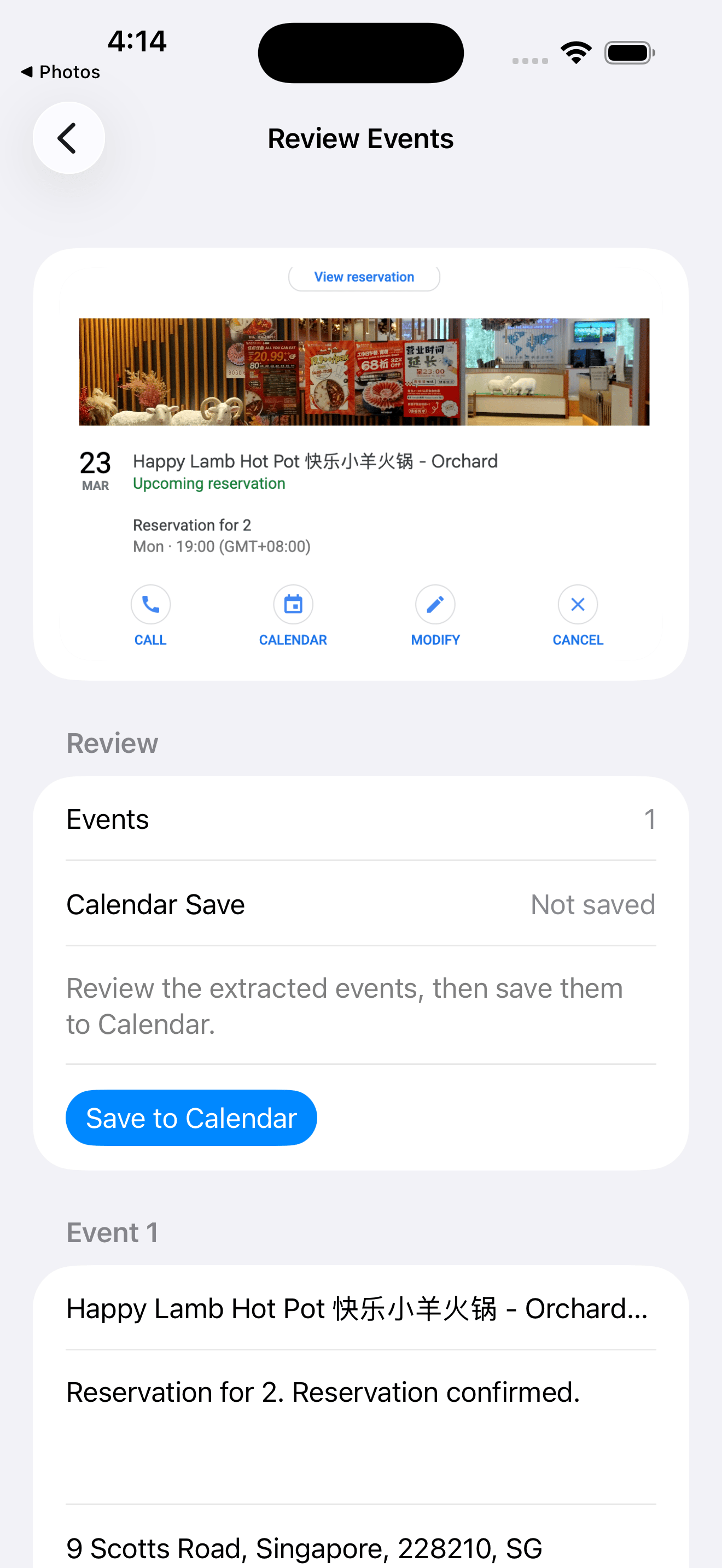
Start in Photos or the app where the image lives. Use the share sheet to send the screenshot to Screenshot Calendar, confirm the handoff, then review the extracted title, date, time, location, and notes. When the draft is ready, save it into the native iPhone Calendar app so it behaves like the rest of your events.
Share from Photos
Continue into Screenshot Calendar
Review the extracted details
Save into native Calendar
Review First
Why Screenshot Calendar pauses before saving.
The pause is intentional. A screenshot can be cropped, blurry, decorative, or full of extra text. Screenshot Calendar treats extraction as a draft, not a final decision, so you can correct the details before Calendar changes. If a portable file is useful, ICS actions remain available as a fallback alongside the normal native Calendar save path.
Edit details before save
Keep Calendar as the final destination
Use ICS actions when you need a file
Trust
Control matters when screenshots contain personal plans.
You review the draft before saving, and the final event goes into the Calendar app you already use. The website does not add page-view analytics for this SEO launch, and the privacy policy stays linked from the footer for users who want the details.
No unsupported accuracy promise
No ad-targeting story for screenshots
Privacy policy stays available
Questions people ask.
- Does Screenshot Calendar save into Apple Calendar?
- Yes. After you review the extracted draft, the final event can be saved into the native iPhone Calendar app.
- Can I edit before saving?
- Yes. The review screen is designed so you can correct the event title, date, time, location, notes, and save state before committing the event.
- Does it work with screenshots from Messages, email, or websites?
- Yes. If the screenshot is available in Photos or can be shared through the iPhone share sheet, it can move into the Screenshot Calendar review flow.
- What happens if details are wrong?
- Treat the extraction as a draft. Fix the details on the review screen, skip the save if the screenshot is not useful, or use the ICS fallback when a file is the better handoff.
Review the event before you save it.
Screenshot Calendar keeps the draft visible so the final event lands in Calendar only after you have checked it.