
Photo To Calendar
Turn photos and flyers into Calendar events.
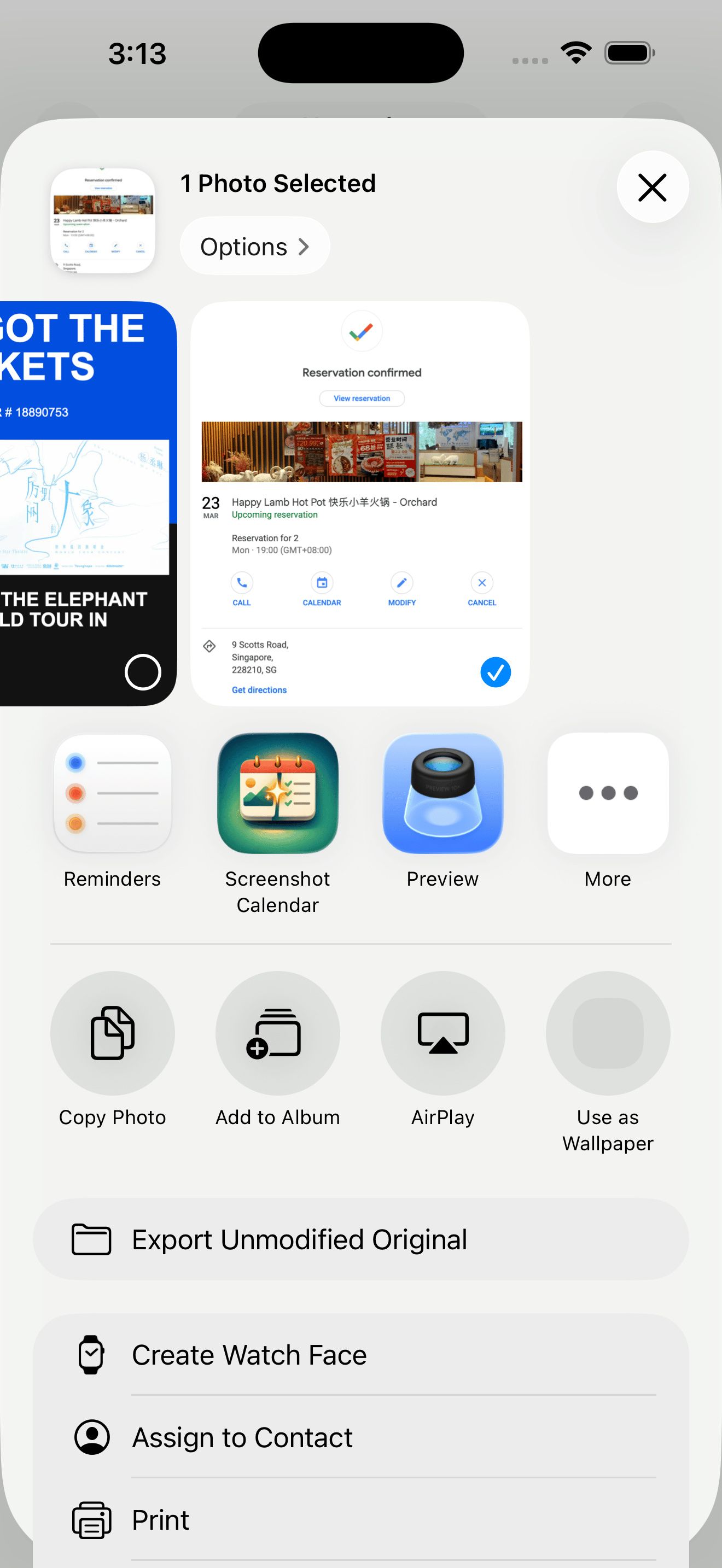
A photo can already contain the whole plan: a flyer on a wall, a poster in a group chat, a screenshot of an event page, or an invitation saved from the web. Screenshot Calendar is not a generic upload funnel. It is built around the iPhone flow people already use: keep the image in Photos, share it to the app, review the event draft, and save into Calendar when the details look right.
Primary intent: photo to calendar app
Review before save
Native iPhone Calendar output
Best Fit
Photos that already contain the plan.
Use Screenshot Calendar when an image has enough information to become a calendar draft. The source might be a photo of a printed flyer, a screenshot of a ticket page, an invitation graphic, or a poster someone sent you. The app helps when the plan is visible but typing it into Calendar would be tedious.
Flyers, posters, and invitations
Photos of printed schedules or venue notices
Event images saved from Messages, Mail, Safari, or social apps
Screenshots that need a human review before saving
Image To Draft
From image to editable event draft.
Pick the image from Photos or share it from another app. Screenshot Calendar stages the image, extracts a draft, and gives you an editable review screen before anything reaches Calendar. That keeps the workflow close to normal iPhone behavior without asking you to start from a blank calendar form.
Share from Photos or another app
Continue into Screenshot Calendar
Review the draft event fields
Save the clean event to Calendar
Before Save
What to check before saving.
Image-based event details can be incomplete or visually crowded. Before saving, check whether the draft picked the right event title, date, start time, end time, venue, and useful notes. If the image includes several events, review the extracted drafts and save only the ones you want.
Confirm date and time
Check venue and location text
Review one or more extracted events
Use ICS actions when you need a portable file
Destination
Calendar remains the final destination.
Screenshot Calendar prepares the event from the photo, but the finished plan belongs in the native iPhone Calendar app. That means alerts, edits, and day-to-day calendar management stay where users expect them.
Native Calendar output
Editable review step
Privacy policy linked from every page
Questions people ask.
- Can it read flyers?
- Yes. Flyers are a strong use case when they include visible event details such as a date, time, venue, or title that can become a reviewable draft.
- Can it read posters or invitations?
- Yes. Posters, invitations, and event graphics can move through the same image-to-draft flow, with review before save.
- Can I save more than one event?
- When the image contains multiple events and the app extracts more than one draft, you can review the events before saving the ones you actually want.
- Is Calendar still the final destination?
- Yes. Screenshot Calendar helps prepare the draft, then the finished event is saved into the native iPhone Calendar app.
Review the event before you save it.
Screenshot Calendar keeps the draft visible so the final event lands in Calendar only after you have checked it.