
Schedule Screenshot To Calendar
Turn schedule screenshots into Calendar events.
Some screenshots contain more than one plan. A class schedule, trip itinerary, conference agenda, appointment list, or workout calendar might include several dates and times on the same image. Screenshot Calendar is built around extracted event drafts, so you can review one or more events before saving the useful ones into Calendar.
Primary intent: schedule screenshot to calendar
Review before save
Native iPhone Calendar output
Best Fit
When a screenshot has more than one event.
This page is for images that are more like a list than a single invitation. Use it for school timetables, travel plans, conference sessions, appointment blocks, sports schedules, and activity calendars. The app can handle one or more extracted events when the screenshot contains multiple plans to review.
Class schedules and activity calendars
Trip plans and appointment lists
Conference agendas or workshop lineups
Workout calendars and recurring activity screenshots
Multi-Event Flow
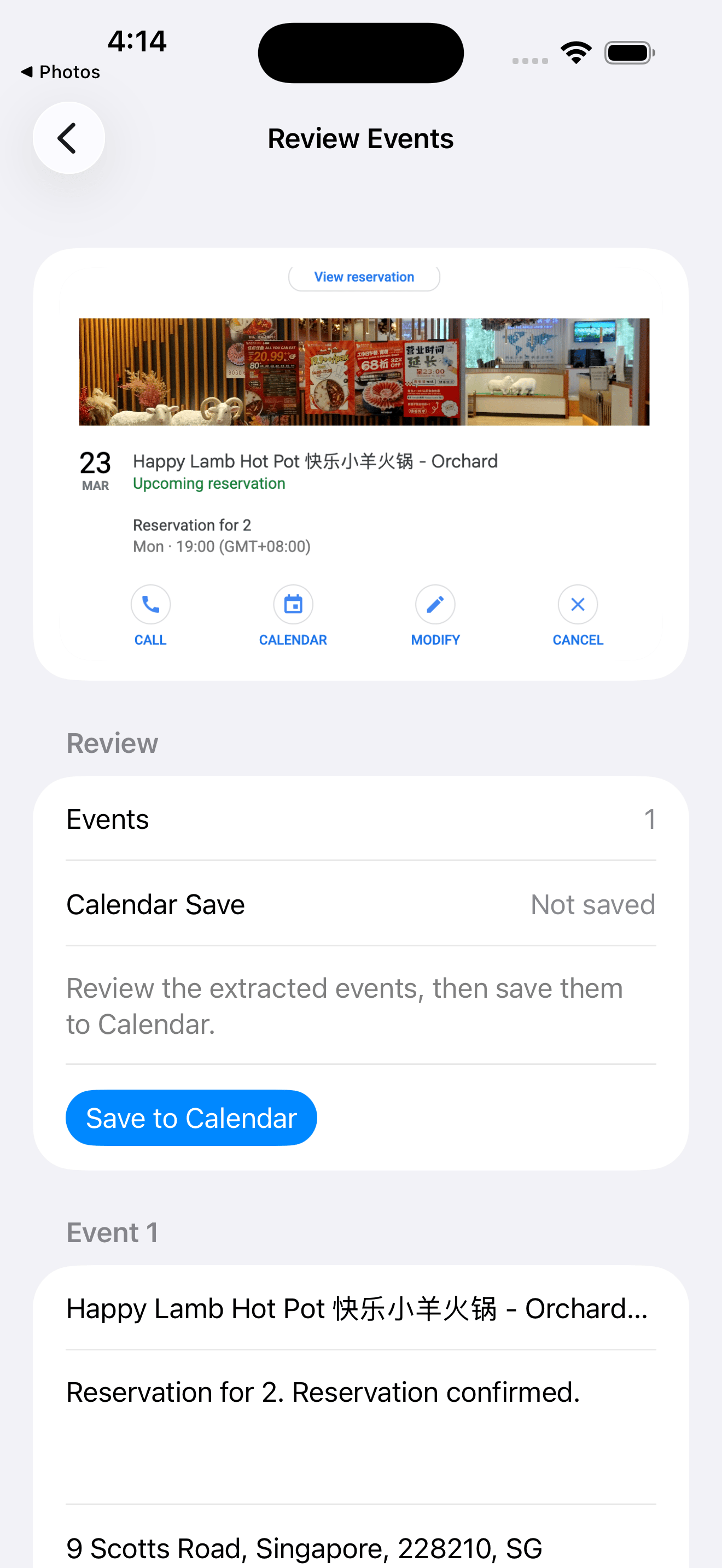
Review each extracted event before saving.
Share the schedule screenshot to Screenshot Calendar and continue into the app. The extraction service can return multiple events from one image, and the iOS review flow is built around reviewing extracted events before Calendar save. Check the title, date, start time, end time, and notes for each draft.
Share the schedule screenshot
Review one or more extracted events
Fix individual event details
Save the drafts that belong in Calendar
Selective Save
Save only the events you actually want.
A schedule screenshot may include breaks, deadlines, optional sessions, or events you do not plan to attend. The review step helps you avoid adding noise to Calendar. If only part of the schedule is detected, keep the useful events, edit what needs correction, and skip anything that should not be saved.
Skip unwanted drafts
Edit incomplete event fields
Avoid cluttering Calendar
Use ICS fallback when sharing a file is easier
Realistic Output
Multiple events still need a human check.
The app can work with one or more extracted events, but schedules vary a lot. Review is what makes the workflow practical: you can check each draft before saving, then rely on native Calendar for alerts, edits, and day-to-day planning.
No unsupported completeness promise
Native Calendar destination
History keeps processed screenshots available
Questions people ask.
- Can one screenshot create multiple events?
- Yes. The extraction flow supports one or more events from a single image when the schedule contains multiple plans.
- Can I skip or edit an event before saving?
- Yes. Review the extracted drafts, edit the details that need correction, and save only the events you want.
- What if only part of the schedule is detected?
- Use the drafts that are useful, correct what you can, and leave out anything that is incomplete or not worth saving.
- Does it save into native Calendar?
- Yes. After review, the selected events can be saved into the native iPhone Calendar app.
Review the event before you save it.
Screenshot Calendar keeps the draft visible so the final event lands in Calendar only after you have checked it.